How to update a drilling rig template
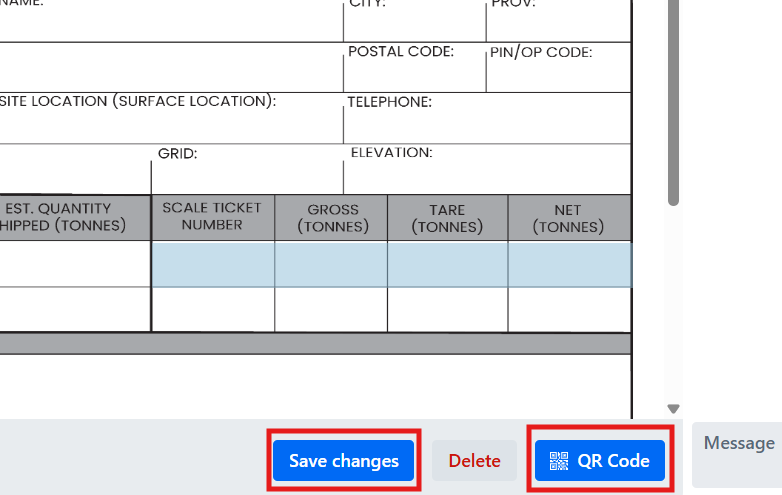
- Navigate to the manifests section on the left side
- Mark off manage templates
- The template can be searched via the drilling rig name, example in the image below
- Now select the template with the well name and product code that you are looking to update.
- If you are changing wells and are no longer drilling at the old well, the same product code template can be used granted you change the well location and update the name of the template
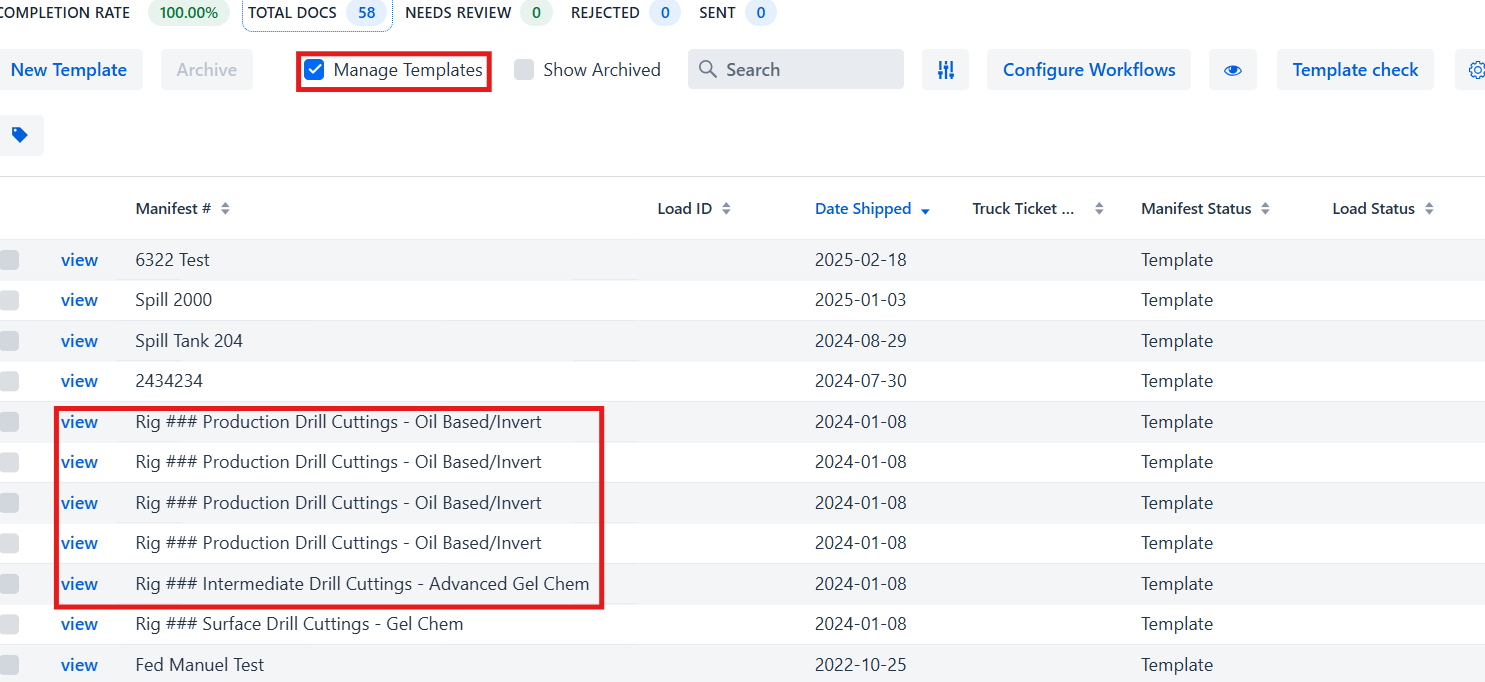
- To open and begin updating the template click the view on the profile
- To update the templates name click the button next to the title at the top of the template
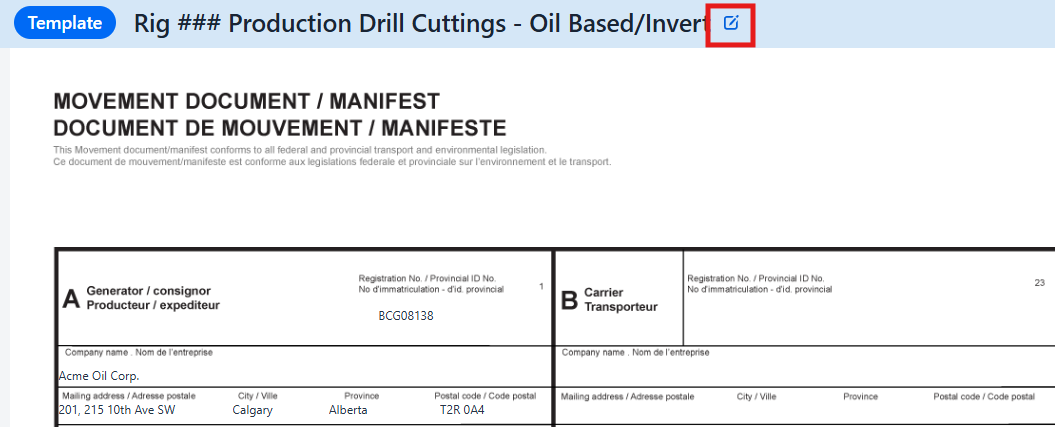
- To update the site location click into the generator section and search either the site name or license drop down. Once the correct location is selected hit save. If the location appears greyed out it’s locked, you will need to unlock using the button in the bottom left in order to change this information
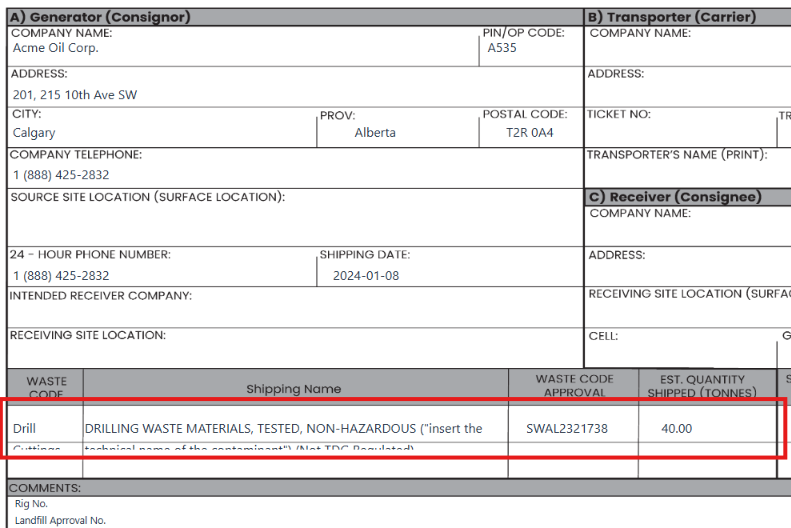
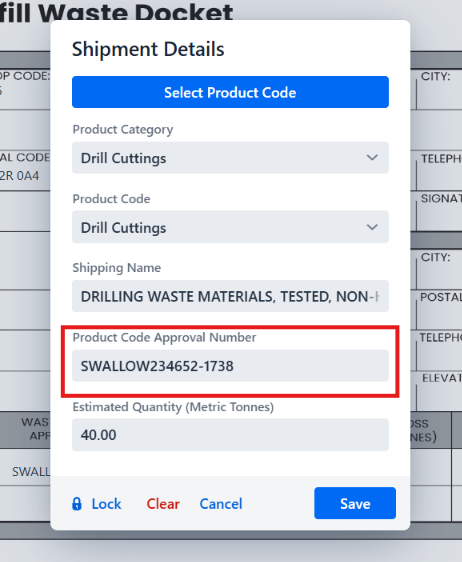
- Check the waste code approval number is updated to match any updated landfill approvals
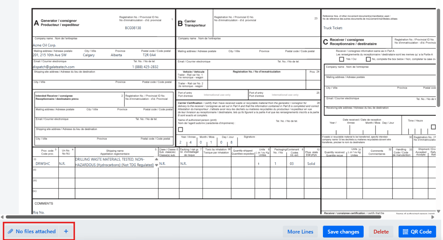
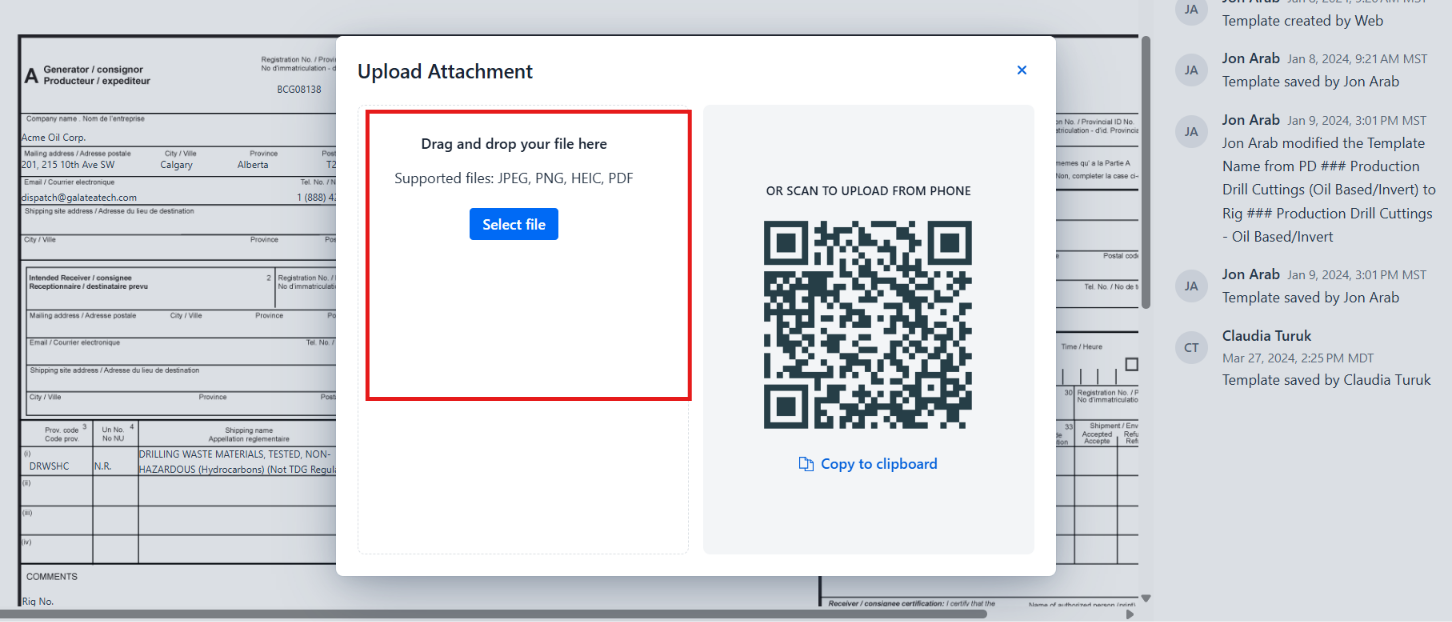
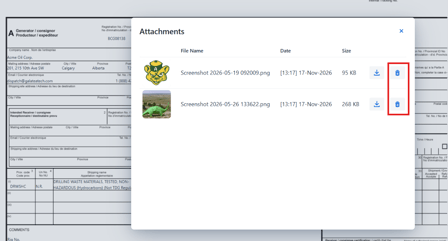
- To change the attached waste approval form click the plus sign in the bottom left corner. From here either select or drag and drop the file. You can view the attached files by clicking on the button to the left of the plus sign, make sure to delete the old waste approval forms.
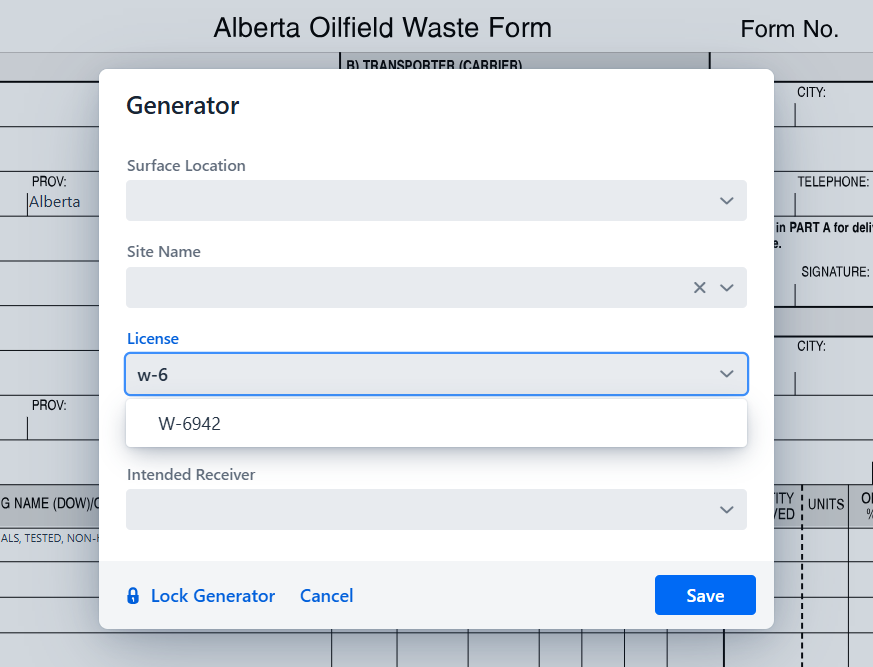
- Once the necessary information has been updated hit save changes in the bottom right hand corner. The associated QR code will now reflect the template changes made when creating a load. If you need to reprint the QR code that can be done with the QR Code button in the bottom right.